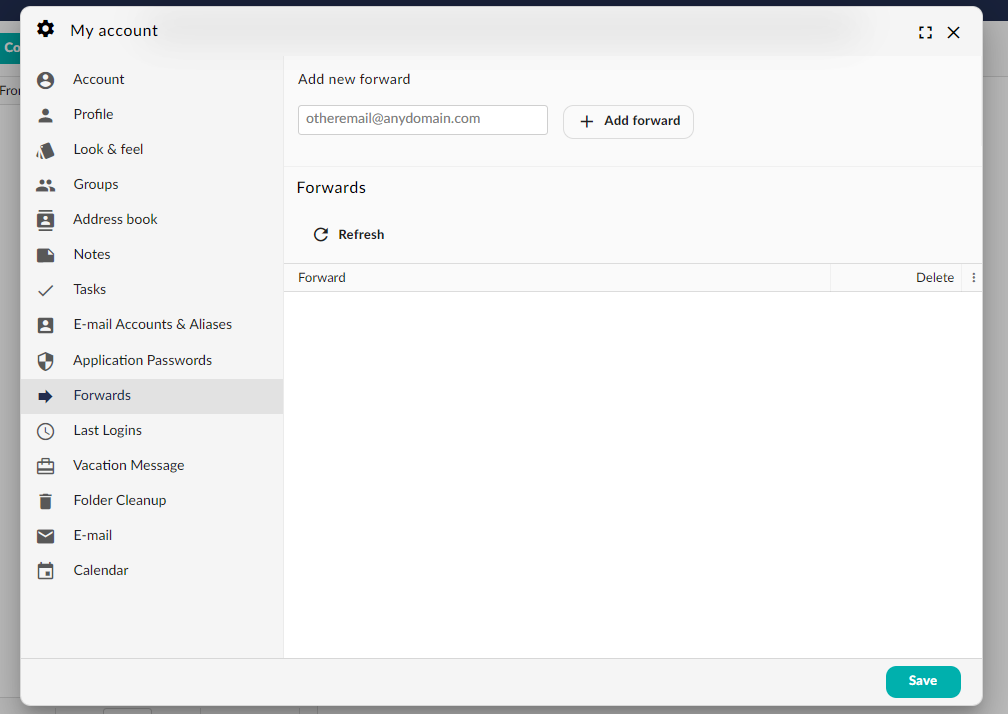
Forward Messages
Forward Messages
It is possible to set up automatic email forwarding from your account to other email addresses, while retaining a copy locally. However, please note that any emails identified as spam by our server will not be forwarded.
Add a Forward
- Go to the Webmail
- Log in using your current e-mail password
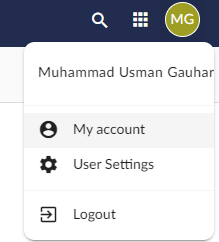
- Click on the User icon from the top right to activate the menu. Then click on My account
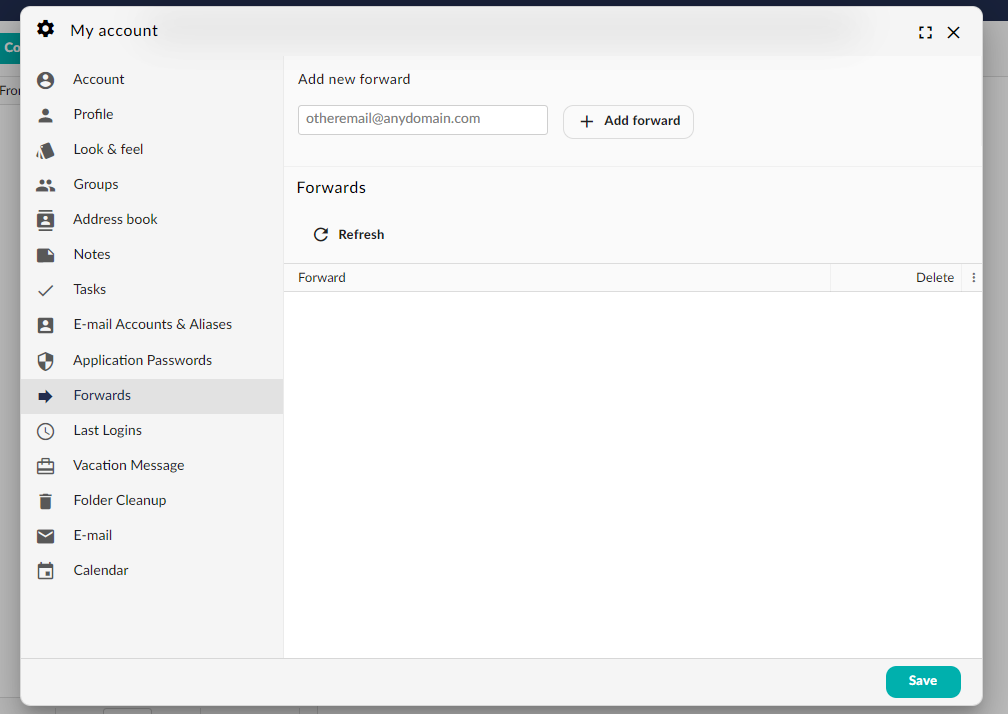
To create a forwarding rule, navigate to the “Forwards” tab and provide the destination email address in the designated field. Once entered, click the “Add forward” button to complete the process.
Remove a Forward
- Remove a Forward
- Log in using your current e-mail password
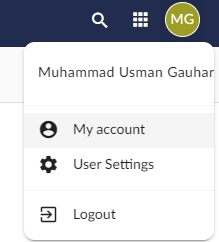
- Click on the User icon from the top right to activate the menu. Then click on My account
- To remove a forwarding rule, access the “Forwards” tab and locate the relevant entry. Hover over the entry and select the “Delete” icon to proceed with deletion.