QUICK START GUIDE
Follow these steps to create a new email address using your own domain that you have already purchased.
This quick guide applies to both Business and Enterprise mailboxes and includes steps on updating the DNS for your domain to include our email servers, how to access the Webmail, send your first email, and set up the email account to your other devices.
If you don’t have a domain yet, you can purchase one from inspedium.com.
STEP 0: SIGN UP
Sign up for the INSPEDIUM.EMAIL email service and add the required number of Business OR Enterprise accounts to your subscription.
STEP 1: LOG IN TO THE DASHBOARD
Log in to the member dashboard using the email you used when signing up.

STEP 2: SETUP THE DNS FOR YOUR DOMAIN
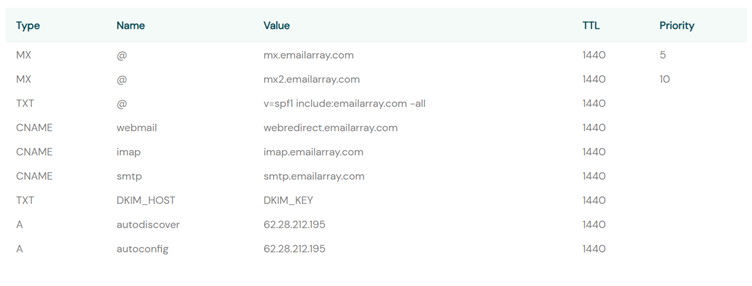
The next step is to specify to the Internet how to process the email for your domain name – on which servers the mailbox is located and which servers are allowed to send emails on behalf of your domain name.
To change the DNS, you should log in to your domain registrar or your domain hosting provider, as they are the ones who manage your nameservers. You will only add or change the necessary records for the email to work properly; this means you can host your website with another provider.
To view the required DNS records click on the gear icon next to the domain name from the domain list and scroll down, you can see DNS entry examples.
STEP 3: CREATE A NEW EMAIL ADDRESS
- In the Dashboard, in the left side menu, click on the Email tab.
- On the Email page, select the domain you just added from the Select Domain drop-down and click the Create button.

- In the new pop-up window, fill in the details for your new email address:
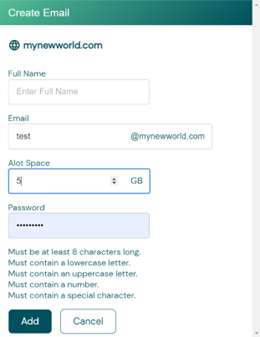
Allotted Space: the size of the mailbox, in GB. - Finish adding this new email account by clicking the Add button.
STEP 4: SEND YOUR FIRST EMAIL
Now that you have set up your email address, you can start using it with your favorite Internet browser (Chrome, Firefox, Safari, etc.) by accessing Webmail. The Webmail doesn’t need additional setup, and you can access it from any computer, smartphone, or tablet without installing other applications.
You can access Webmail in two ways:
- By typing in the Browser this kind of URL: webmail.mydomain.com (make sure you replace mydomain.com with your domain name). This works only if you have set up the DNS records for webmail.
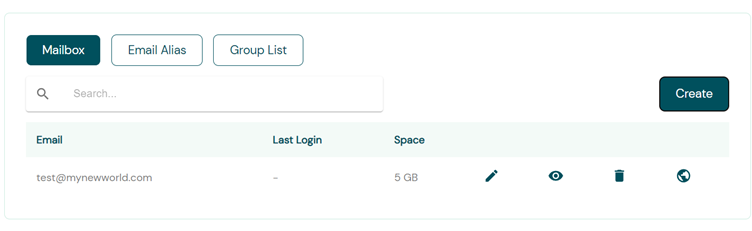
- Straight from your Dashboard by clicking on the world icon on the Email page. You can save the link and bookmark it to your favorite browser for quick use in the future:
Congratulations, you have completed the setup of your email address! You can now send your first email and let everybody know you have a new address.