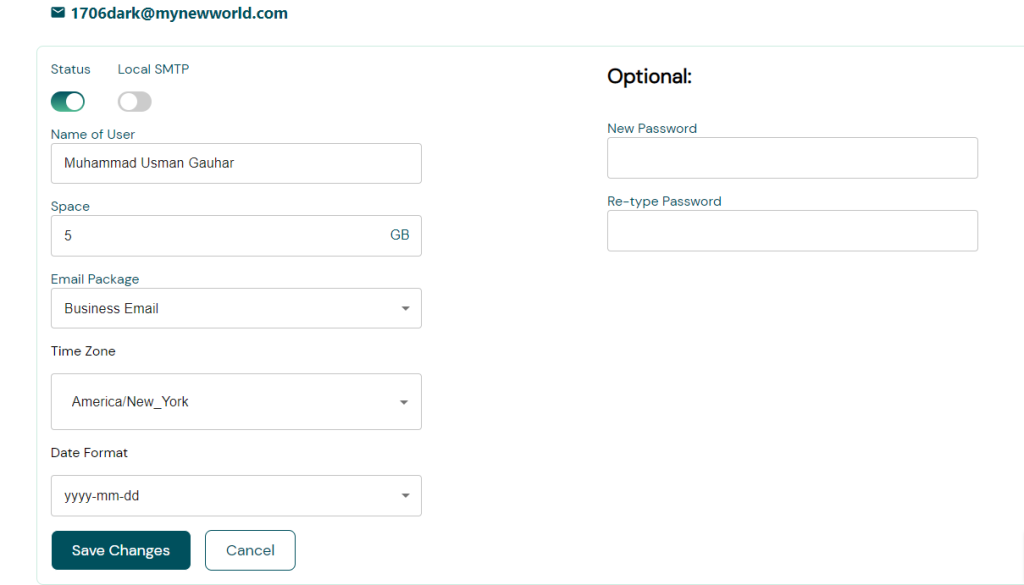
Change your mailbox password
1. Change your mailbox password from the Webmail
To update the password for your email address, please follow these steps:
- Access the Webmail platform. https://webmail.YOURDOMAIN.COM/
- Enter your full email address and current password to log in.
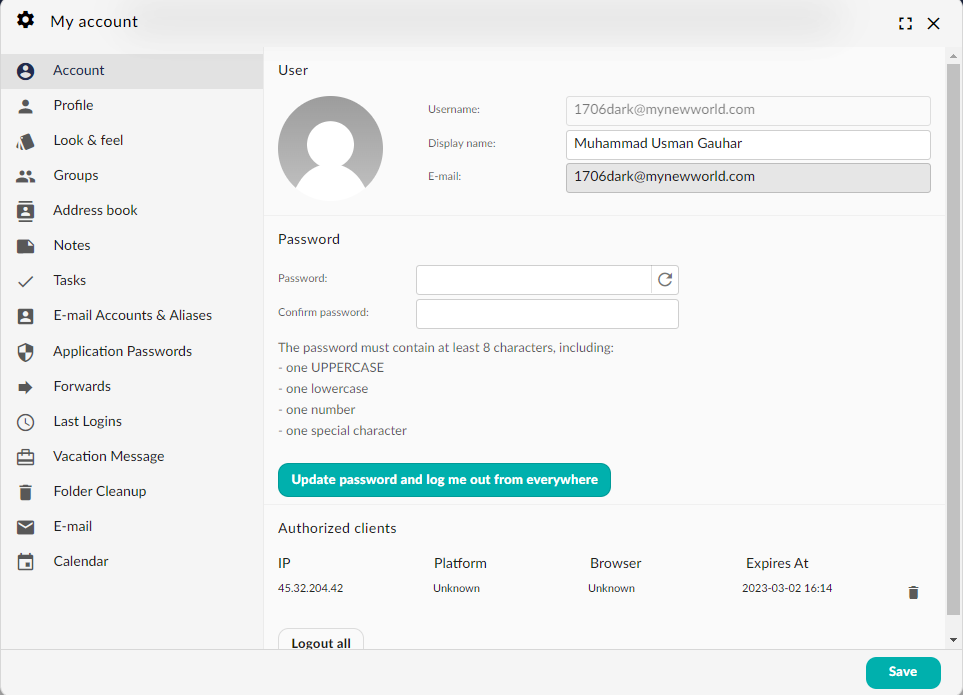
- Once logged in, click on the User icon located on the top right-hand corner to activate the menu.
- From the dropdown menu, select “My Account” to access your account settings.
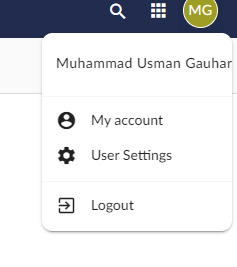
To change your password, navigate to the “Account” tab and locate the “Password” section.
Enter your new password in the provided fields and confirm it to proceed.
It is important to note that the new password must satisfy all the required criteria.
If you prefer to use a strong password, you can generate one by clicking on the Refresh arrow icon located to the right of the password field. Once you have entered your desired password, click on the “Update password and log me out from everywhere” button. This will log you out of all devices and email clients that you may be currently logged in to.
After successfully updating your password, you can log back in using your new credentials.
2. Change your mailbox password from the User Panel
To update your email password, please follow these steps:
- Access the User Panel.
- Enter your full email address (e.g. [email protected]) and current password to log in.
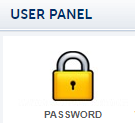
- Once logged in, click on the “Password” icon from the menu.
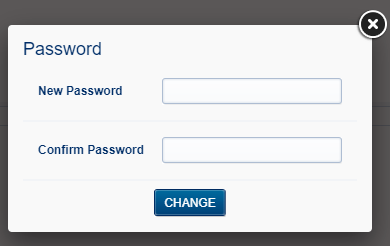
- Enter your desired new password and confirm it in the provided fields.
- Click on the “Change” button to save your new password.
You may also access the control panel directly from within the Group Office Webmail platform:
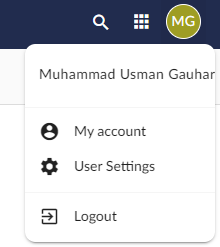
- Click on the “User” icon located on the Webmail interface to display the menu options.
- Select “User Settings” from the dropdown menu.
- You will be automatically logged in to your User Panel, allowing you to manage your account settings and preferences.
3. Change the mailbox password from the Admin Panel
If you have permissions, you can update the mailbox password without knowing the current one
To update the password
- Direct to admin panel https://inspedium.email/
- Log in using your admin email and password
- Go to the Email tab
- Select the desired email
- Click the pencil (Edit) icon to the desired email
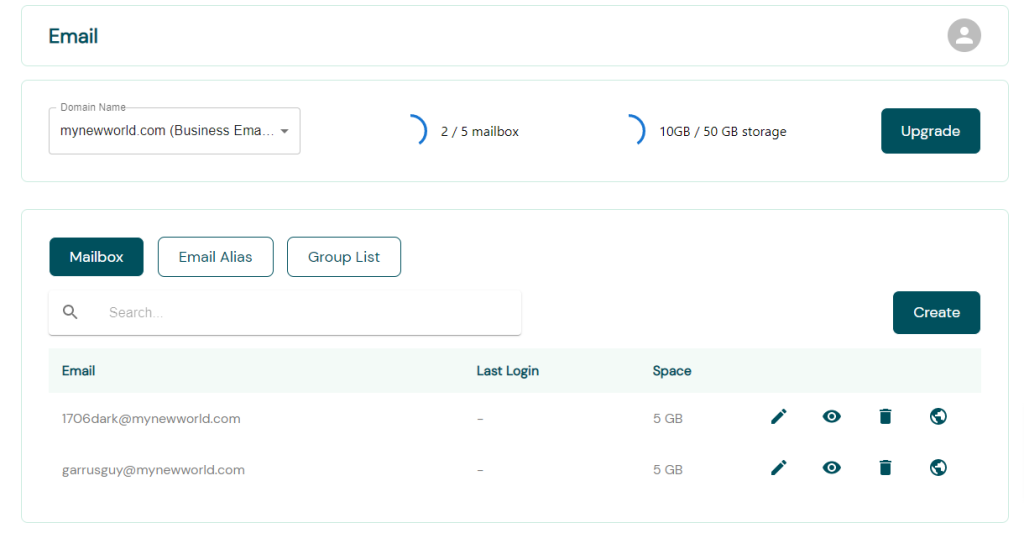
- In the pop-up window you can fill the new password for your Email
- Click the save changes button to save your changes